
trackers & tracers. For Windows and Android.
VideFlow Installation Guide
This page provides information about installing VideFlow on Windows, verifying your download, and understanding Microsoft SmartScreen security messages that may occasionally appear when installing newly released software.
Download Verification
For maximum security, you may verify the downloaded installer before running it.
Installer Information
Filename: VideFlow_1.0.2_Win64_Setup.exe
SHA-256 Checksum:
64 d6 ba 4d e3 92 f1 94 40 5f 05 2d de fd 8d 7a f6 70 7b 13 f1 20 67 b4 0c ff 09 fe 41 b8 18 39
The SHA-256 checksum uniquely identifies the installer file. If the checksum generated on your computer matches the value above, the file has not been altered or corrupted since publication.
Unsigned Software and Microsoft SmartScreen
VideFlow is independently developed software distributed directly through this website. The installer is currently not digitally signed, which means Windows may display a Microsoft SmartScreen warning when the installer is launched.
SmartScreen is designed to provide additional caution when software is downloaded from the internet, particularly when the software is new or does not have an established reputation within Microsoft's systems.
A SmartScreen warning does not indicate that VideFlow is harmful. It simply means that Windows cannot automatically verify the publisher through a digital signature.
To help verify that you have downloaded the genuine installer, please ensure that:
- The installer was downloaded directly from sportsvideoanalysis.com.
- The filename matches the version published on this website.
- The SHA-256 checksum matches the value published above.
If these checks are correct, you can continue with installation using the options provided by Windows.
Understanding Microsoft SmartScreen
Microsoft SmartScreen is a reputation-based security system included with Windows. It helps protect users from unknown or potentially harmful software downloaded from the internet.
When software is newly released, SmartScreen may display a warning even when the software is legitimate and safe to use. This is because the application has not yet established sufficient reputation within Microsoft's ecosystem.
This behaviour is common for new software releases and does not necessarily indicate a problem with the installer.
Example SmartScreen Warning
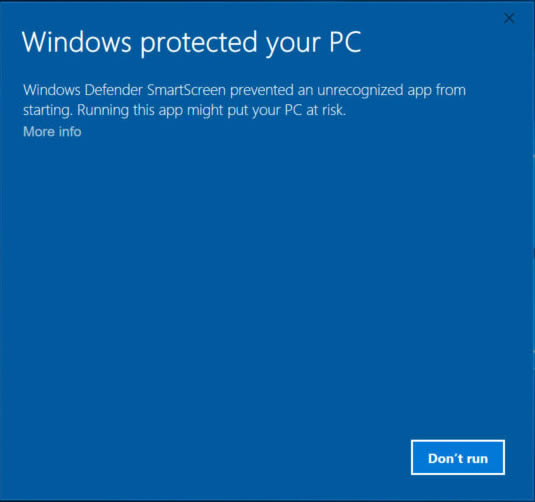
Click "More info" to see additional details about the installer.
How to Continue Installation
If SmartScreen displays a warning when launching the VideFlow installer:
- Click More info.
- Review the publisher information displayed.
- Click Run anyway.
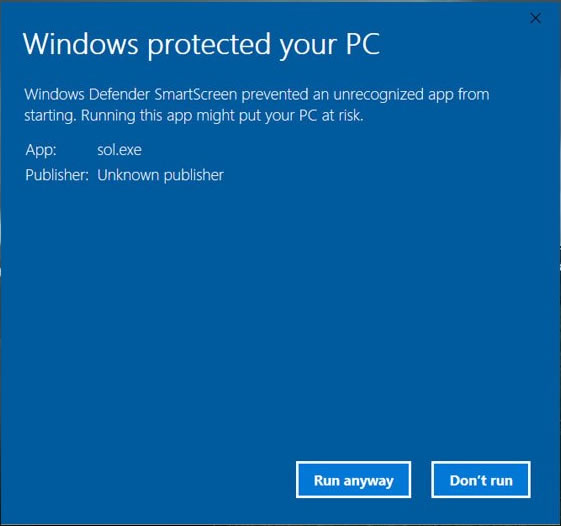
After reviewing the information, click "Run anyway" to continue installation.
After selecting Run anyway, Windows will launch the installer normally.
Antivirus Software
Some antivirus products may perform additional scans of newly released software. This is normal behaviour.
If your antivirus software reports a concern, ensure that:
- The installer was downloaded directly from sportsvideoanalysis.com
- The SHA-256 checksum matches the value published above
- Add the program folder to your antivirus exclusion list, to allow its specific files and folders to be excluded from scanning.
If you believe the installer has been incorrectly identified as suspicious software, please contact us with details of the antivirus product and warning message received.
Antivirus Software and VideFlow
VideFlow uses a number of advanced video-processing components, including FFmpeg and Python-based analysis tools. These components are launched automatically by the application when processing videos.
Some antivirus products may monitor, delay, restrict, or occasionally block these processes, particularly when using aggressive security settings or reputation-based protection features.
If VideFlow does not operate correctly after installation, or if video processing features fail to start, temporarily disabling antivirus protection can help determine whether security software is interfering with normal operation.
As an alternative to disabling protection entirely, many antivirus products allow specific files or folders to be excluded from scanning. This is often the preferred approach if your security software supports it.
If you choose to temporarily disable antivirus protection for troubleshooting, we recommend re-enabling it once testing is complete.
Need Assistance?
If you have any questions regarding installation, verification, SmartScreen warnings, or compatibility, please contact the VideFlow support team.
Site Map

Sun Byte Software is operated and owned by Smith & Young Sales Limited.
Registered in the United Kingdom, Company No. 02965587.
Registered Office: The White House, Toys Hill, Westerham, Kent, TN16 1QG.